 thumbish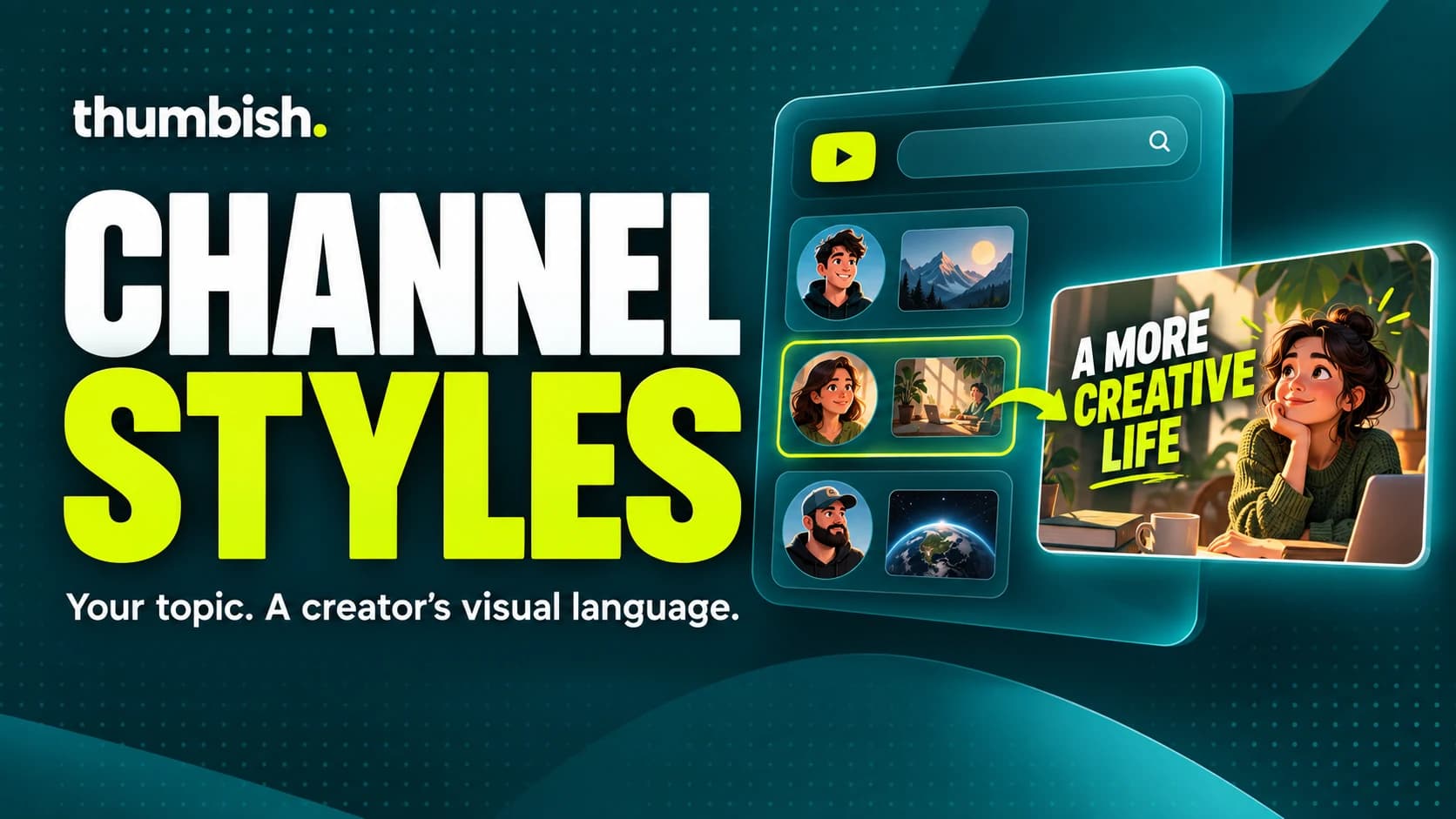
Channel Styles is Thumbish’s YouTube creator browser for thumbnail references. Search a channel name or handle, choose a creator and describe your own video. Thumbish uses eligible recent long-video thumbnails as design references, builds or reuses a reference guide, then proposes a concept for approval. Your topic supplies the content; your persona supplies your identity.
What Channel Styles actually does
Sometimes you know the visual direction before you know how to describe it. You like a creator’s large condensed headlines, tightly cropped presenter, dramatic grading or clean product comparisons. Channel Styles gives that preference a concrete source instead of requiring a long description from memory.
It is a reference workflow, not a template library. The selected channel helps communicate how the thumbnail should look. Your video still determines what it should say and show. A science channel’s visual language can inform your science explainer without carrying over its previous subject, headline or presenter.
The browser does not connect your YouTube account, publish videos or predict thumbnail performance. It helps you choose a design direction inside the same studio conversation where you develop and approve the concept.
1. Find a creator by name, handle or category
Open Channel Styles beside the Attach button in the composer, then choose Browse channels. Search by channel name or @handle. A resolved exact handle returns that channel; broader searches can show up to four results. Check the avatar, name and handle before choosing, particularly when several creators have similar names.
If you are exploring rather than looking for one person, browse the category sections. Gaming, Entertainment, Tech, Education, Business & Finance, Food, Fitness, Travel, Science and DIY & Making each offer five discovery channels. These are starting points for browsing, not a ranking of design quality.
Cards show public subscriber information when available, but subscriber count should not be your style criterion. Pick a channel whose typography, subject treatment and composition fit the kind of video you are making. A popular channel with the wrong visual language is a less useful reference than a clear match.
2. Select a style or save a favourite
Choose Use style to apply the creator to the current workspace channel. The browser closes, and the composer shows your selected source. Paid users can save up to five favourite channels with the star button, making regular references easier to find in the dropdown.
Free users can browse and search the feature. Selecting a creator style or saving a favourite requires a paid plan. Discovery does not mean that a locked selection has been applied; check the composer before sending your brief.
Only one reference source is active at a time. Selecting a creator replaces the uploaded reference kit for the request without deleting that kit. Choosing the saved My channel or Competitors row restores your uploaded references. This prevents two unrelated design directions from being silently combined.
3. Describe the video, not just the desired look
A style selection cannot supply the facts of your video. Give the actual subject, the visible evidence and the promise viewers should understand. Include exact headline text if you have it, and identify any product, person or object that must be recognizable.
Example brief: “My video compares a budget camera with my phone in a dim room. Use the selected channel’s bold headline treatment and close presenter crop. Use my saved persona, facing the viewer. Show the two devices from my attached photos. Exact headline: PHONE OR CAMERA? Do not suggest the camera wins; the video compares tradeoffs.”
This separates design guidance from story content. If you want a different pose, font or expression from the references, state that explicitly. Otherwise, describe the subject clearly and let the selected examples provide the design relationships.
4. Understand which references reach each stage
For a thumbnail request with references, the agent first gives a short acknowledgement of your topic. It then checks for a usable saved guide or analyzes the references before developing the concept. The guide describes individual examples rather than flattening every thumbnail into one generic brand description.
Channel Styles collects up to five recent eligible public videos longer than three minutes, excluding live and upcoming entries. It does not fall back to short videos when eligible examples are unavailable. This conservative duration filter also excludes regular videos of three minutes or less, so a channel with mostly short uploads may not be usable.
Unchanged reference inputs can reuse their guide. Changed reference images, their order, source mode or analysis version require a new one. At image generation, the actual reference images and supplied persona reach the image model; the guide does not replace the visual examples at that stage.
5. Approve the direction, then inspect the artwork
Before approving generation, read the concept for concrete design choices: headline construction, presenter position and crop, gaze, background treatment, finishing and the topic’s focal object. “Inspired by the channel” is less useful than a clear explanation of which example anchors those choices.
After generation, compare the result with the references and your persona. Check lettering, identity, pose, grading and factual details. Also preview the thumbnail small beside its title. A polished image can still communicate the wrong story, and a similar palette alone does not establish a style match.
Ask for a focused revision when one element misses: “Keep the layout and face; match the reference’s tighter bust crop and stronger headline outline.” Generated style transfer is not an exact reproduction guarantee. Use the visible result, rather than the model’s explanation, to decide whether it is ready.
Frequently asked questions
Does my selected Channel Style stay selected?
Yes, on the same browser or app installation. Selection is saved per account and workspace channel until you change it. Different workspaces can use different creators; selection does not synchronize across devices.
Are favourites the same as selected styles?
No. Favourites are an account list of up to five creators. Selecting one applies it to a specific workspace channel.
Does Channel Styles add a separate generation fee?
It uses the existing concept, generation and revision credit costs. Check pricing for current model and quality costs.